No Bot Required: Record Any Meeting with Dicta's Desktop App
5 min read
You know the moment. A client joins the call, sees “Meeting Recorder Bot has joined”, and the mood changes. Someone asks who invited it. Someone else asks whether the call is being sent somewhere. Ten minutes of trust-building start from a small deficit.
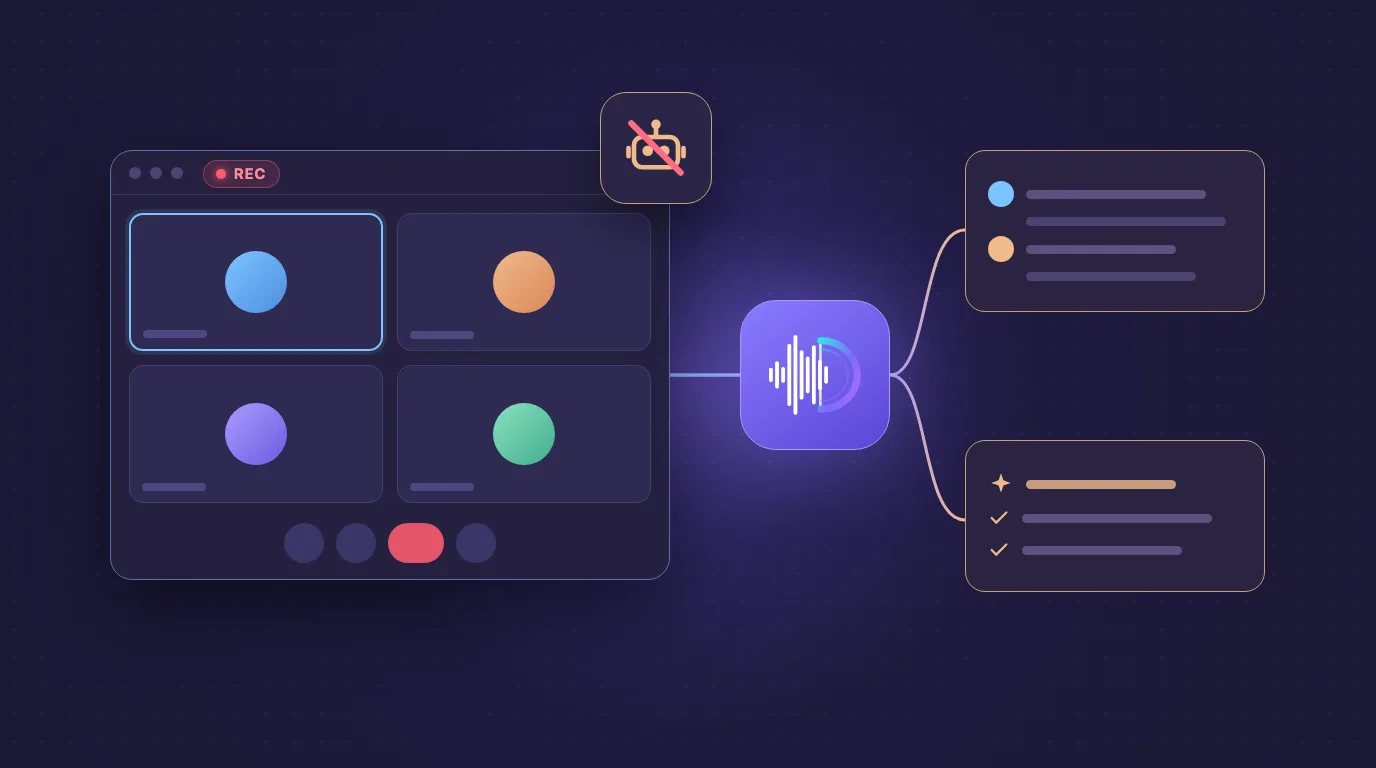
Dicta’s desktop app solves this by recording the meeting from your own computer. No bot joins the call, no extra participant appears in the room, and you still get a transcript by speaker and an AI summary afterwards. The desktop app is available for macOS and Windows, works with Zoom, Google Meet and Microsoft Teams, and detects your call automatically.
What is botless meeting recording?
There are two ways to record an online meeting:
- A bot joins the meeting. A recording participant enters the call, records it, and leaves. Everyone sees it in the participant list.
- An app records on your device. The app on your computer captures the meeting from your side. Nothing joins the call.
The second approach is what people mean by botless or on-device recording, and it is what Dicta’s desktop app does.
How Dicta’s desktop app works
- Download the app from the Dicta download page and sign in.
- Join your meeting as usual in Zoom, Google Meet or Microsoft Teams. You keep using the tools you already use for calls.
- Dicta detects the call and shows a small Record button over your meeting. One click starts recording from your computer. There is no bot, so nothing changes on the other participants’ screens. When the call ends, Dicta stops and uploads the recording by itself.
- Get the result. The recording is sent to Dicta for transcription with speaker labels, and the AI summary appears in your account with topics, decisions and tasks.
- Find it anywhere. Meetings sync across the web, iOS and Android.
Why it is so useful
No awkward moment
The biggest benefit is human, not technical. Clients, candidates, partners and senior colleagues are more relaxed when the room is just the people they expected. A bot name in the participant list can raise questions you do not want to spend time answering.
Automatic call detection
Dicta recognizes when you join a call in Zoom, Google Meet or Microsoft Teams and puts a Record button right over the meeting, so there is nothing to set up for each call: one click and it records. That also helps with unplanned calls: the quick chat that turns into an important one is less likely to go unrecorded because you forgot to prepare a recorder.
Works when a bot would be a problem
Some meetings are hard for bots: calls you are a guest in, where you cannot or do not want to ask the host to admit a third-party participant, or organizations that restrict outside participants. Recording on your own computer avoids that friction.
Nothing extra to manage
There is no bot to invite, name, admit or remove. You join your call, click Record, and the app does the rest.
Same result as a bot-based recording
You still get a transcript with speaker labels in Uzbek, Russian and English, and an AI summary with decisions and tasks, plus the Dicta features that come with it: searchable text, AI chat across your past meetings, tasks you can send to Jira, Trello, Asana or ClickUp, and summaries in Telegram.
One account across devices
Meetings recorded on your computer show up alongside the ones you record on your phone or import as files.
Dicta bot or desktop app: which to choose?
| Dicta bot | Desktop app | |
|---|---|---|
| Joins the call as a participant | Yes | No |
| Works if you cannot attend | Yes, it joins in your place | No, you record while you are in the meeting |
| Visible in the participant list | Yes | No |
| Best for | Meetings you miss or overlapping calls | Meetings you attend and prefer to keep clean |
You can use both: the bot for the call you cannot attend, the desktop app for the one you are in.
Who benefits most
- Sales and account managers: client calls without a bot name appearing on screen.
- Recruiters and HR: interviews where candidates should feel at ease.
- Founders and managers: quick calls with partners and investors.
- Consultants and coaches: sessions with clients who value a discreet setup.
- Journalists and researchers: interviews you attend yourself.
- Anyone in a hybrid job: one habit that works across Zoom, Google Meet and Teams.
Consent still matters
Because nothing visibly joins the call, other participants will not see a sign that it is being recorded. A recording tool that does not announce itself makes it more important that you do.
- Tell participants at the start: “I’ll record this to make notes, is that okay?”
- Follow the law and your organization’s rules. Where consent to record is required, getting it is your responsibility.
- Share the summary afterwards. It builds trust and keeps everyone aligned.
Tips for the best result
- Use good audio. A decent microphone or headset gives a cleaner transcript.
- Let people speak one at a time where possible.
- Introduce participants at the start so names are clear.
- Allow microphone and audio access the first time, when your system asks for it.
Frequently asked questions
Does the Dicta desktop app add a bot to my meeting? No. It records from your computer, so no bot joins the call.
Which systems does it support? macOS and Windows.
Which meeting apps does it work with? Zoom, Google Meet and Microsoft Teams.
Does it detect calls automatically? Yes. When you join a call, Dicta shows a Record button. One click starts recording, and it stops on its own when the call ends.
Do I get a transcript and a summary? Yes. The recording is transcribed with speaker labels and you get an AI summary.
Which languages are supported? Dicta transcribes in Uzbek, Russian and English.
Where do I find my recordings? In your Dicta account. Meetings sync across the web, iOS and Android.
Do I have to tell people I am recording? Where the law or your organization requires consent, yes, and it is good practice either way.
Try it on your next call
Download the desktop app, sign in, and join your next meeting as you normally would. Afterwards, open Dicta and see the transcript and summary.
Try Dicta yourself
Record, transcribe and get an AI summary: who said what and who owes what. Signing up is free.